AI background remover
Turn a product photo or portrait into a transparent cutout, then adjust its size, position, and canvas ratio
Choose an image to remove the background
or drop or paste an image
JPG, PNG, or WebP, up to 30 MB
How to make an image background transparent
Choose a product photo or portrait
Choose an image with a clear subject. Background removal starts automatically after upload.
Adjust the subject and canvas
Keep the background transparent or choose a solid color, then adjust the aspect ratio, subject position, and size.
Download a PNG or save your creation
The transparent original is saved automatically in My creations. Download the current image, or save a new version after adjusting its background or composition to continue editing later.
Turn a product photo into a transparent cutout
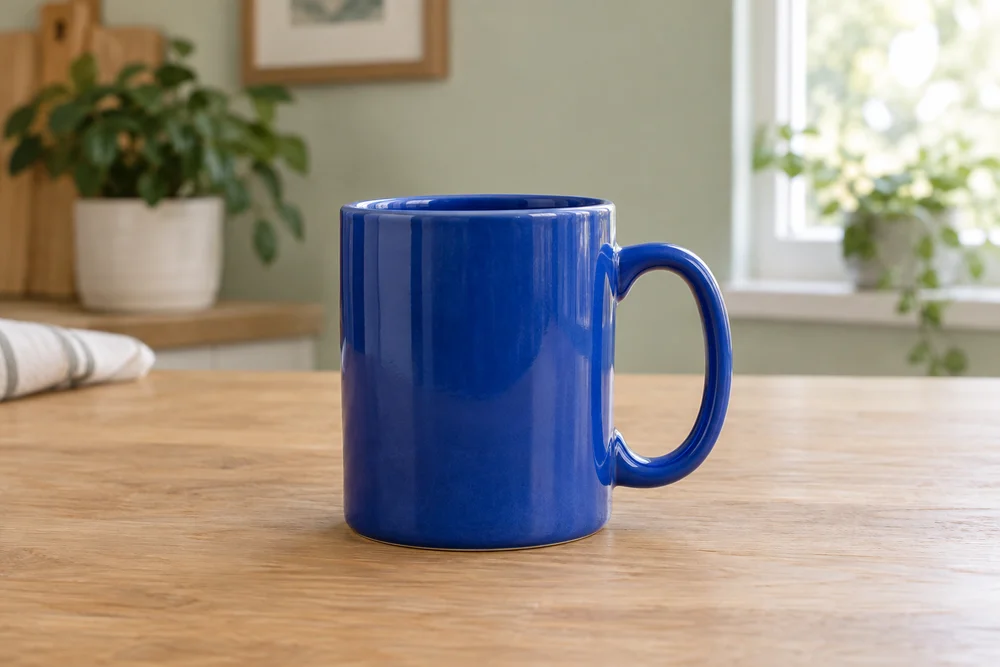
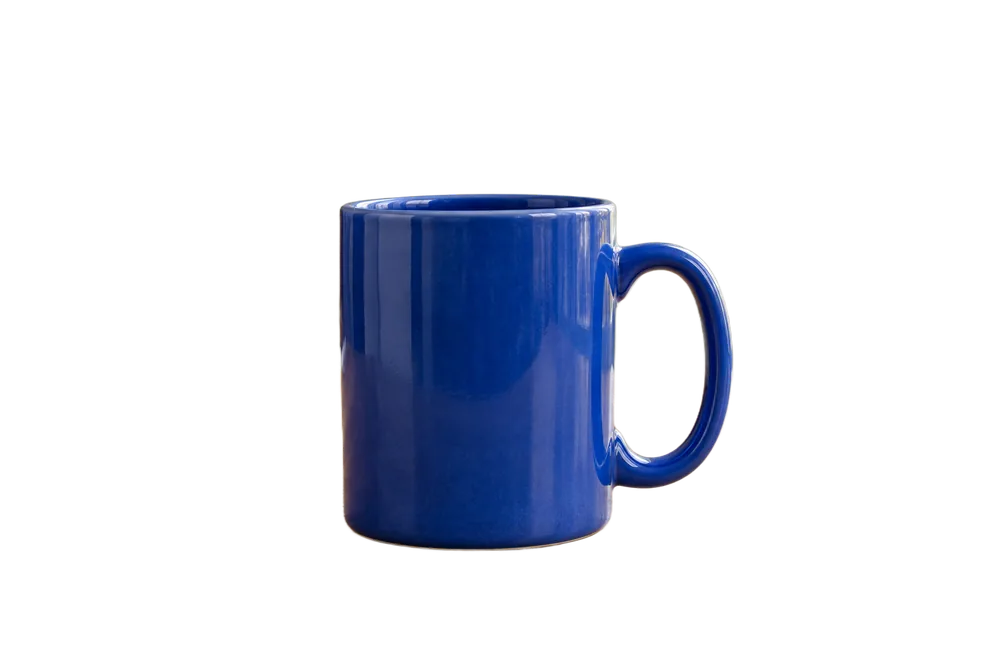
An actual background removal result: the table and room are removed from this blue ceramic mug photo, leaving a transparent product image for a new composition
Separate products and people from the background
Automatically separate the subject from its surroundings to create a reusable transparent image without tracing its outline point by point.
Switch between landscape and portrait layouts
Place the cutout on a new canvas ratio, move it, and scale it proportionally to arrange product images or content covers.
Leave room for your layout
Center your product or move it to one side, leaving room to add titles and descriptions later.
Switch between transparent and solid backgrounds
Export a transparent PNG, or choose white, a preset color, or a custom color to create different backgrounds.